


Best for
Cloud transcription of recorded speech with a reviewable transcript.
Transcribe uploaded audio or video with OpenAI Whisper in Subclip. Review the transcript and use the result for captions and further editing.
Cloud transcription of recorded speech with a reviewable transcript.
Standard Whisper transcription does not provide the automatic speaker-label workflow. Choose the dedicated diarization option when you need speakers separated.
1 credit per minute of transcription.
Step 1

Step 2

Step 3
Answers about this workflow, access and limits.
Need another answer? contact@subclip.app
Contact supportTranscribe uploaded audio or video with OpenAI Whisper in Subclip. Review the transcript and use the result for captions and further editing. Cloud transcription of recorded speech with a reviewable transcript.
1 credit per minute of transcription.
Upload recorded audio or video to the cloud transcription workflow.
Standard Whisper transcription does not provide the automatic speaker-label workflow. Choose the dedicated diarization option when you need speakers separated.
Yes. Review and correct the transcript and timing before using it for subtitles or subsequent edits.
Need another answer? contact@subclip.app
Contact support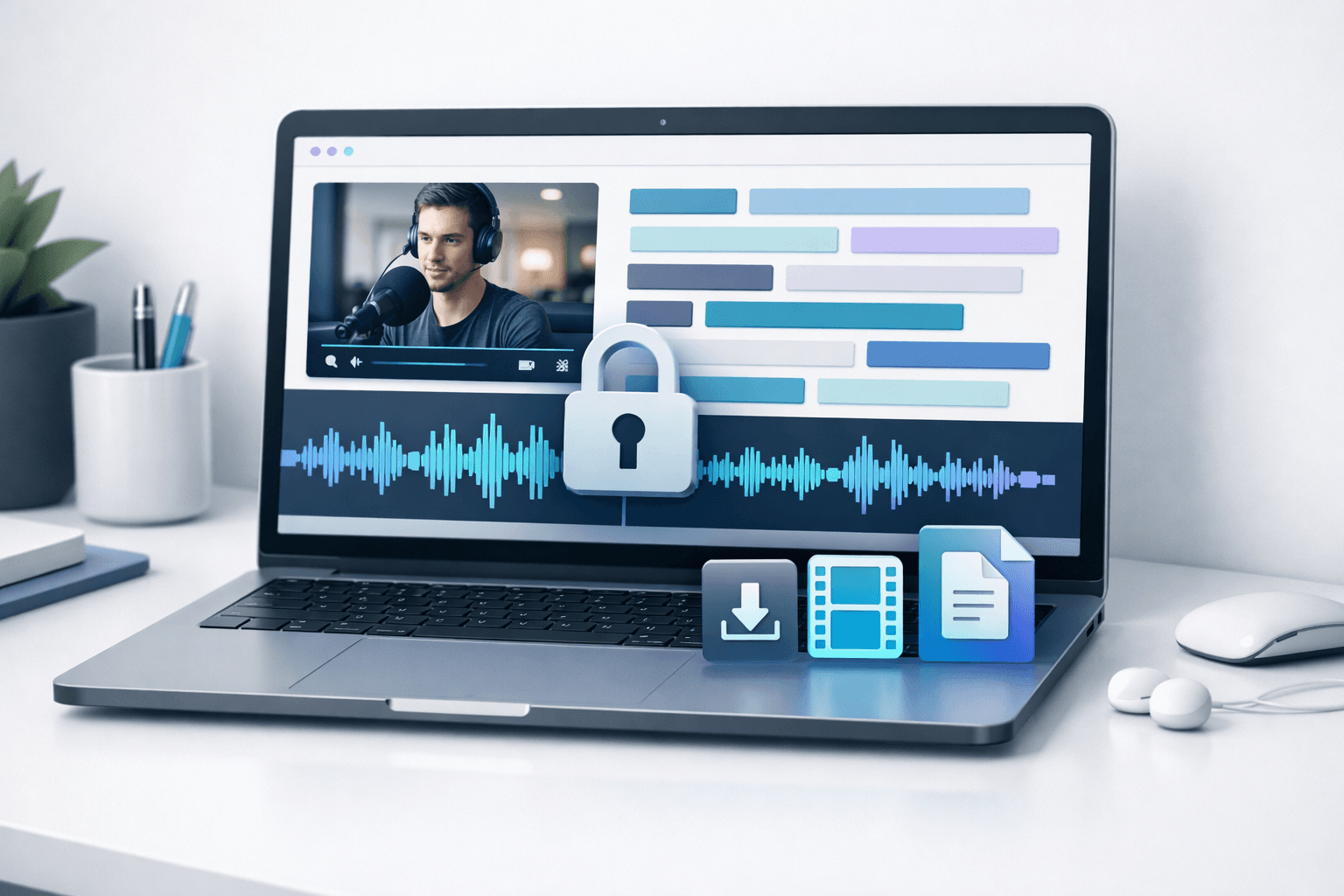
Complete step-by-step guide to transcribing videos locally on your Mac without uploading to cloud services....
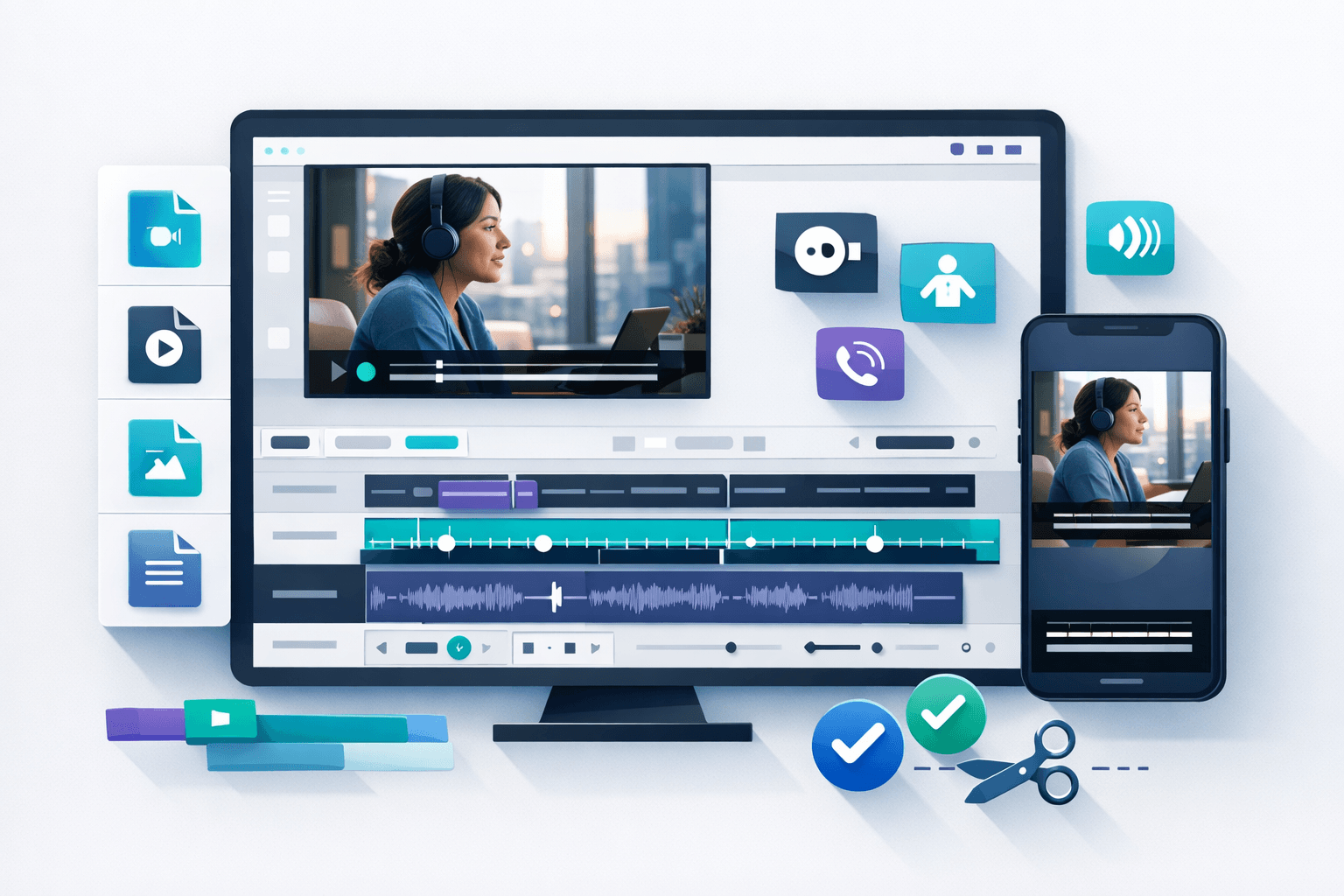
Everything you need to know about video subtitles: types, formats, best practices, and professional techniqu...
Practical comparison of timecode SRT VTT editors for creators and teams.