# Complete Video Post-Production Workflow for YouTube Creators in 2026
Build a complete YouTube post-production workflow for 2026: organize footage, edit faster, clean audio, add captions, repurpose Shorts, publish, and improve with analytics.
Canonical URL: https://www.subclip.app/blogs/youtube-post-production-workflow
Last modified: 2026-06-02T10:17:04.056Z
Author: Samik
Published: 2026-05-31T15:29:38.070Z
Category: video-editing
# Complete YouTube Post-Production Workflow for Creators in 2026
A YouTube post-production workflow is the system that turns raw footage into a finished upload, a Shorts package, a thumbnail/title test, captions, metadata, and a repeatable publishing loop. The goal is not only to make the video look better. The goal is to reduce friction between filming, editing, publishing, and learning from analytics.
If you publish weekly, your workflow matters as much as your camera. A messy post-production process makes every upload feel custom. A clear system lets you improve quality without rebuilding the process from scratch every time.
## Quick Workflow Overview
| Stage | Output | Main Decision |
|---|---|---|
| 1. Ingest and organize | Clean project folder | Can you find every file quickly? |
| 2. Build the story cut | Rough video structure | What is the promise and payoff? |
| 3. Polish the edit | Watchable final timeline | Where does pacing drag? |
| 4. Clean audio | Clear voice track | Can viewers understand every line? |
| 5. Add captions/subtitles | Accessible viewing assets | Burned-in captions, SRT, or both? |
| 6. Create Shorts | Repurposed discovery clips | Which moments work without context? |
| 7. Package for YouTube | Title, thumbnail, description | Why should someone click now? |
| 8. QA and publish | Final upload checklist | What could break viewer trust? |
| 9. Review analytics | Next-video improvements | What should change next week? |
## 1. Start With a Project Folder System
Before editing, create one folder per video. A simple structure is enough:
- /footage
- /audio
- /graphics
- /music
- /exports
- /shorts
- /thumbnail
- /captions
Use consistent names like `2026-05-31-youtube-retention-tips`, not `final-video-new-new`. This matters when you revisit old projects to create Shorts, update descriptions, export captions, or hand files to an editor.
## 2. Transcribe Early, Not at the End
Transcription should happen before the final edit, not after it. A transcript helps you find strong moments, remove repeated points, check the hook, create chapters, write descriptions, and turn the video into Shorts.
For talking-head, tutorial, course, podcast, and interview content, transcript-led editing is usually faster than timeline-only editing. In [Subclip](/tools/ai-video-editor), you can use the transcript to trim, cut, polish the draft, remove silences, generate subtitles, and prepare social clips from the same source.
## 3. Build a Rough Story Cut
The rough cut answers one question: does the video deliver the promise?
Do not start with color, captions, sound effects, or fancy transitions. First, make sure the viewer gets a clear sequence:
- Hook: why this video is worth watching
- Context: what problem you are solving
- Main value: the steps, lesson, story, or proof
- Payoff: what the viewer can do next
- Next step: what to watch, try, or download
For YouTube, pacing is not only speed. It is the removal of confusion. A slower explanation can hold attention if each sentence moves the viewer closer to the payoff.
## 4. Remove Dead Air and Repetition
Dead air is not only silence. It includes repeated intros, long pauses, restart sentences, filler words that break momentum, and sections that explain what the viewer already understands.
Use silence removal for the first pass, then review manually. Automatic cleanup should save time, not make the creator sound unnatural. Keep human pauses where they help emphasis, jokes, demonstrations, or emotional beats.
## 5. Clean the Voice Before Adding Music
Voice clarity is more important than background music. Viewers will tolerate simple visuals longer than muddy audio.
Your audio pass should check:
- background noise
- echo
- uneven volume
- harsh peaks
- mouth clicks and plosives
- music overpowering speech
Use a voice enhancer when the source has room noise, echo, or inconsistent levels. If the audio is badly recorded, fix as much as possible before adding compression, EQ, music, or effects.
## 6. Add Captions and Subtitles Strategically
Captions are not only an accessibility feature. They help mobile viewing, Shorts repurposing, silent autoplay, non-native speakers, and fast scanning.
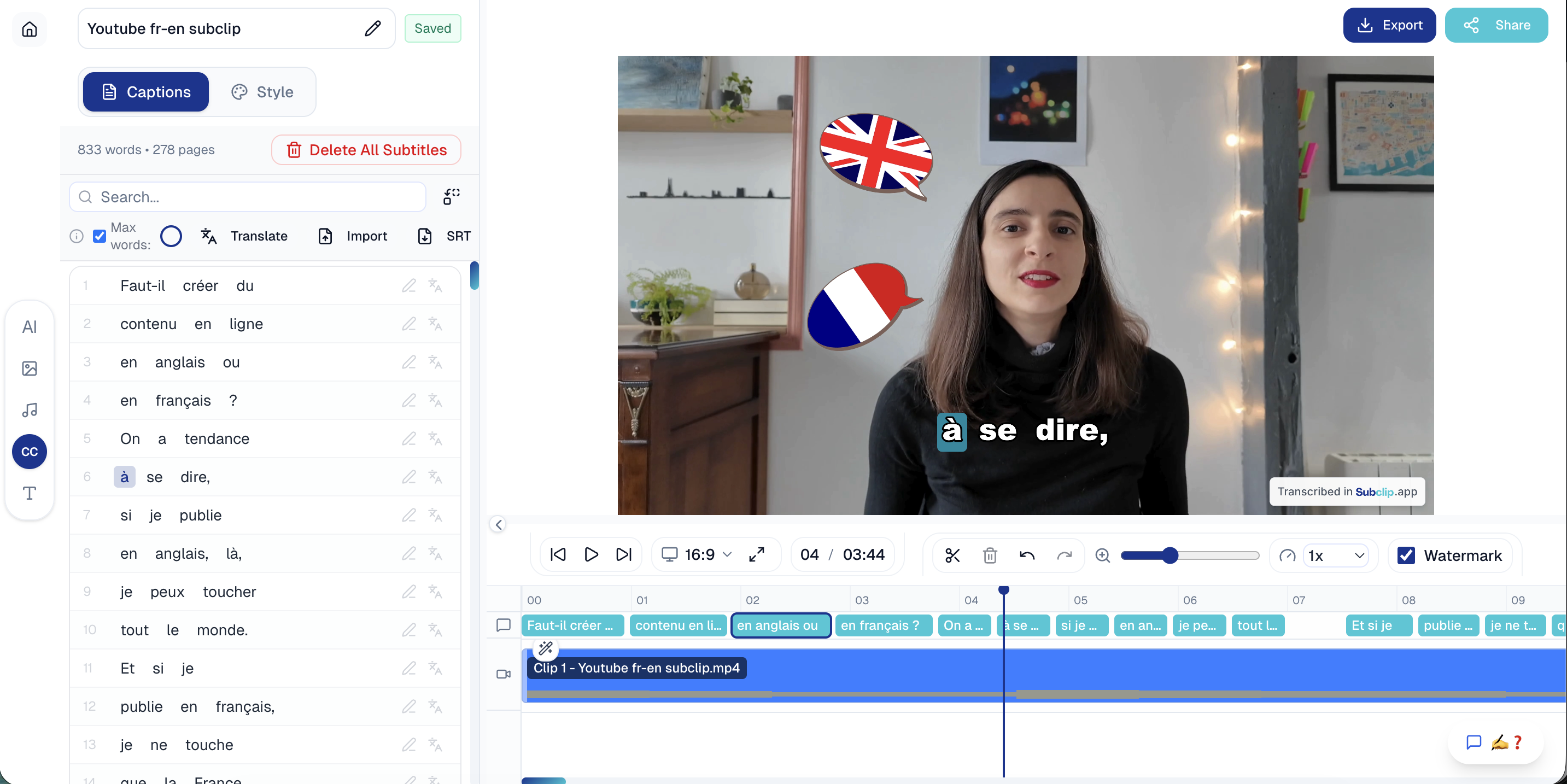
Use [dynamic captions](/tools/dynamic-viral-captions) for Shorts and social clips. Use SRT or platform captions for long-form YouTube when you want cleaner viewing, accessibility, search support, and easier corrections.
For YouTube creators, a good caption workflow should let you:
- edit words quickly
- split lines for readability
- export SRT
- create burned-in social captions
- translate or localize when needed
- keep caption style consistent across clips
## 7. Create Shorts From the Same Source Video
Shorts should not be an afterthought. During post-production, mark moments that work without the full video:
- strong opinion
- surprising statistic
- quick tutorial step
- before/after reveal
- mistake and fix
- personal story moment
- objection and answer
Export 3-7 Shorts from a strong long-form video. Each Short needs its own hook and caption pacing. Do not simply crop a random timeline section and hope it works.
## 8. Package the Video Before Upload
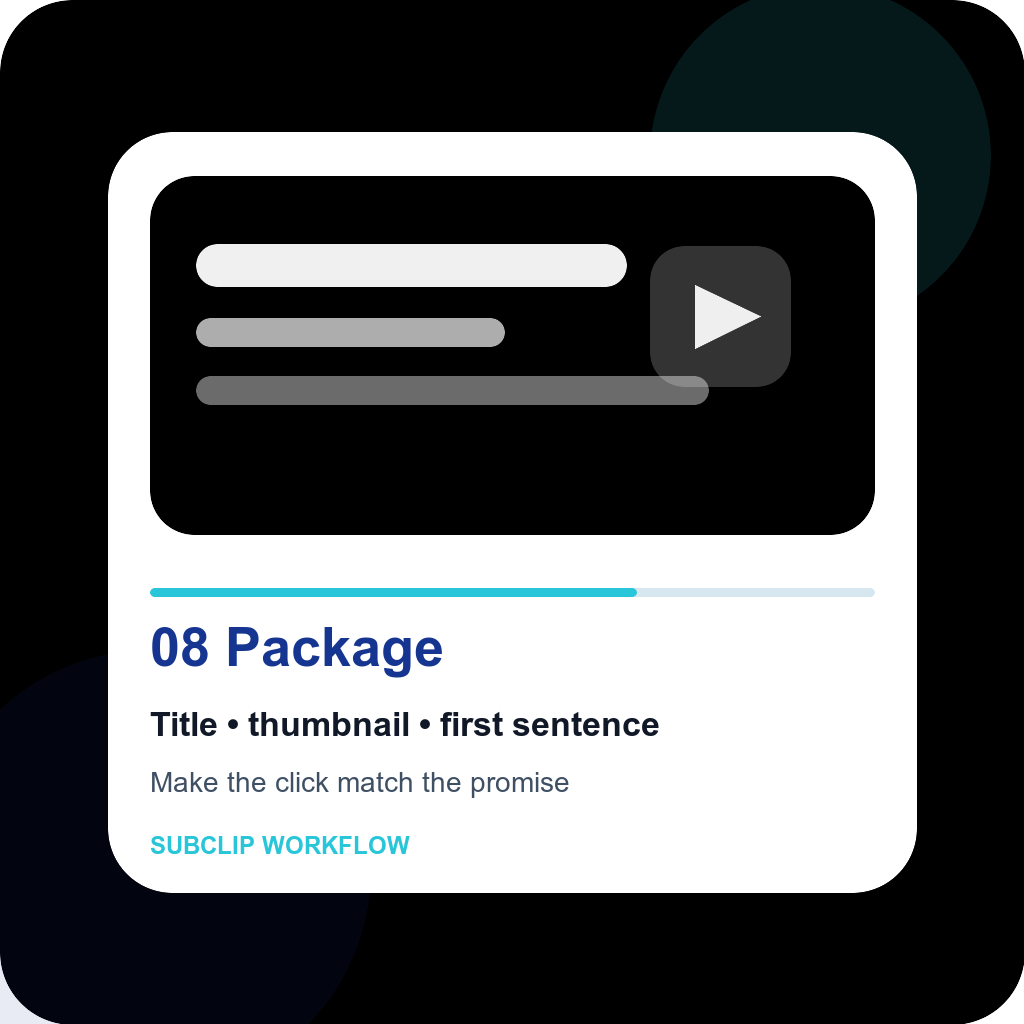
Packaging is title, thumbnail, first sentence, description, chapters, pinned comment, and end screen strategy. It should match the actual video, not exaggerate it.
Before publishing, ask:
- Is the title specific enough for the target viewer?
- Does the thumbnail show the conflict, result, or curiosity?
- Does the first 30 seconds deliver on the click?
- Does the description include the core promise and useful links?
- Can the viewer tell what to watch next?
## 9. Run a Final QA Checklist
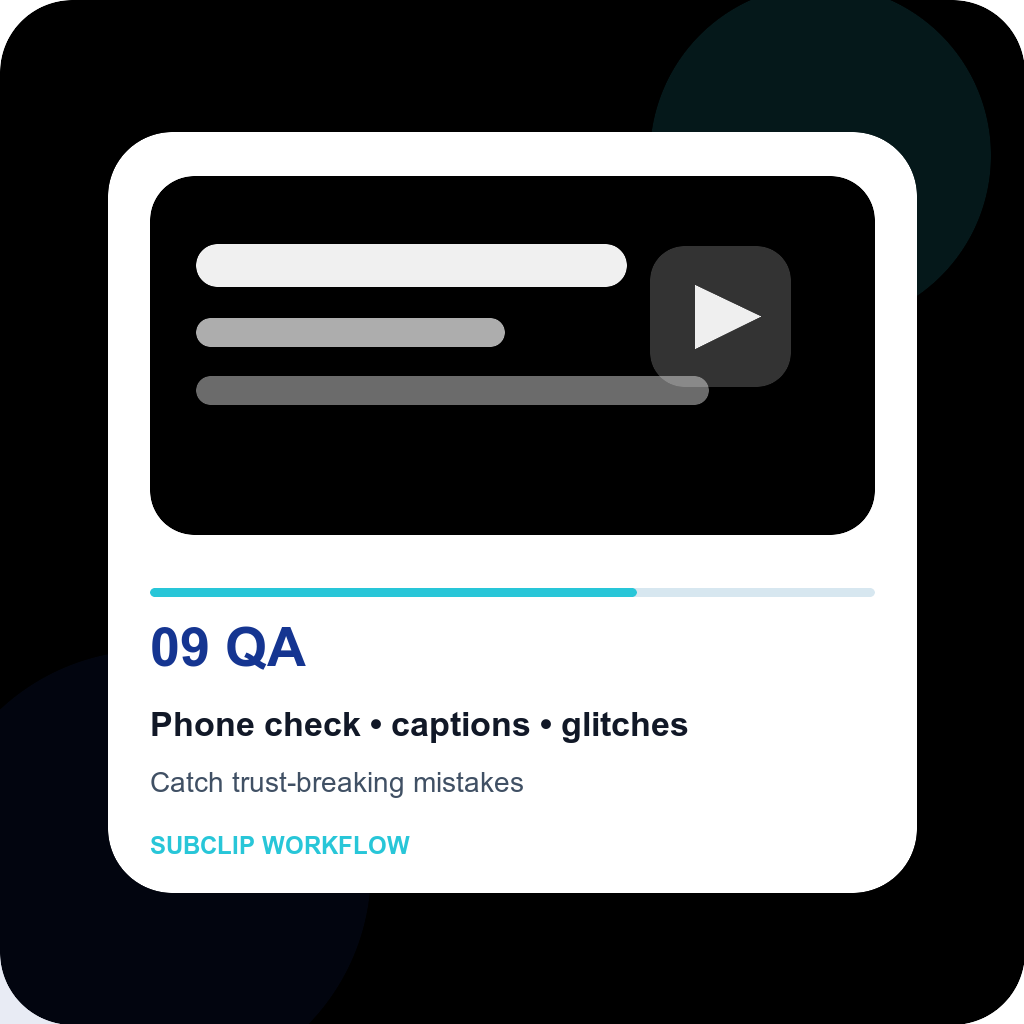
Before upload, watch the export like a viewer, not like the editor.
Check:
- audio is clear on laptop and phone speakers
- captions are spelled correctly
- names and technical terms are correct
- no black frames, glitches, or accidental blank sections
- end screen does not cover important visuals
- title and thumbnail match the actual content
- upload format and resolution are correct
- Shorts crop keeps faces, text, and hands inside safe areas
## 10. Review Analytics After 24-72 Hours
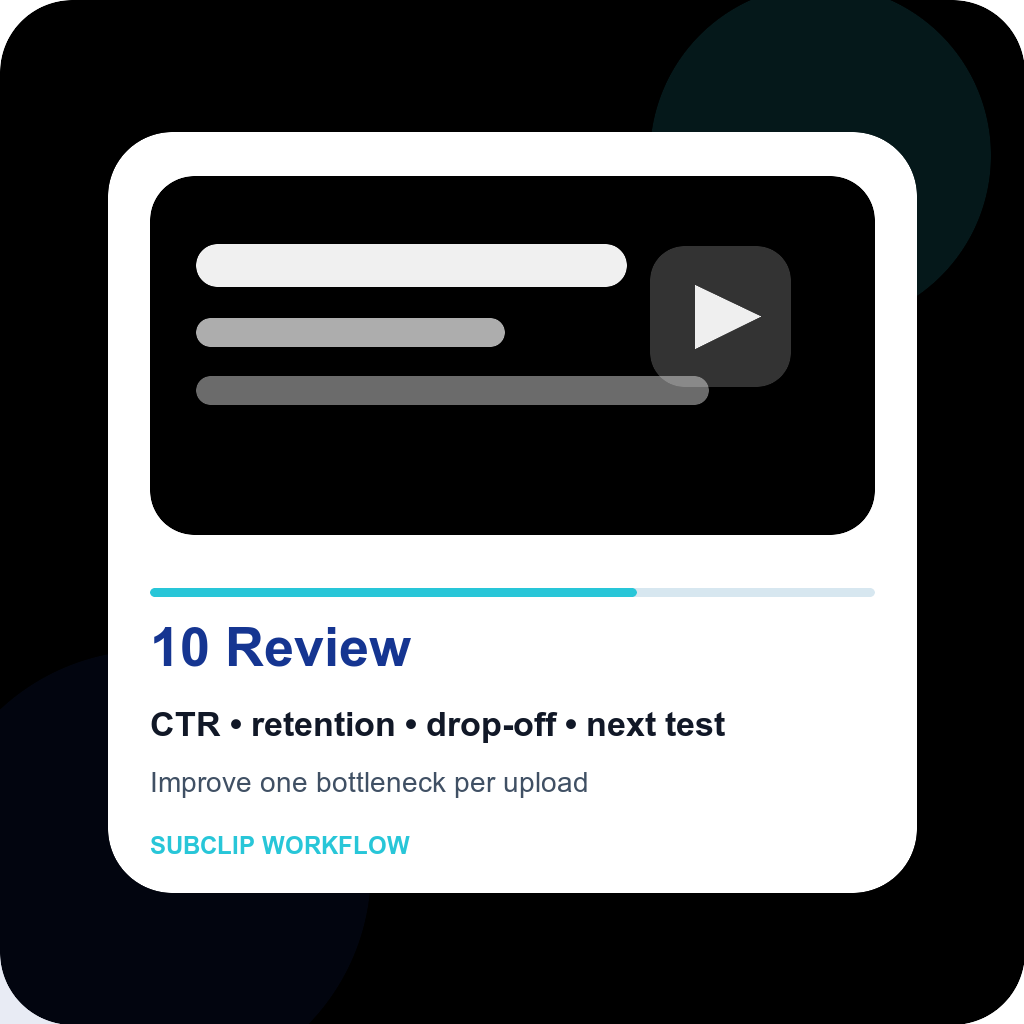
Do not judge a video only by views. Use analytics to diagnose the workflow:
- Low click-through rate: packaging problem
- Early drop-off: hook or expectation problem
- Mid-video drop-off: pacing or structure problem
- Strong retention but low views: distribution or topic problem
- Shorts views but low long-form lift: audience mismatch or weak bridge
Write one lesson after every upload. The point is not to overreact. The point is to improve one bottleneck per video.
## Tool Stack for a Practical YouTube Workflow
| Workflow Need | Tool Type | Good Fit |
|---|---|---|
| Transcript-led draft edit | AI video editor | Subclip, Descript |
| Deep timeline finishing | NLE | DaVinci Resolve, Premiere Pro, Final Cut Pro |
| Audio cleanup | Voice enhancer/audio editor | Subclip voice enhancer, Adobe Podcast, Resolve Fairlight |
| Captions and SRT | Subtitle editor | Subclip, VEED, Kapwing, Descript |
| Shorts repurposing | Clipping workflow | Subclip, Opus Clip, CapCut |
| Thumbnail design | Design tool | Canva, Photoshop, Figma |
| Publishing and review | YouTube Studio | YouTube Studio analytics and upload workflow |
## Common Workflow Mistakes
- Editing before deciding the viewer promise
- Leaving caption cleanup until the final hour
- Fixing visuals before audio is understandable
- Exporting Shorts without rewriting hooks
- Uploading without checking mobile readability
- Changing too many variables after every video
- Treating analytics as judgment instead of feedback
## FAQ
### What is post-production for YouTube creators?
Post-production is everything after recording: organizing footage, editing, audio cleanup, subtitles, graphics, Shorts repurposing, thumbnails, upload metadata, QA, and analytics review.
### Should I edit YouTube videos by transcript or timeline?
Use transcript editing for talking-head, tutorial, podcast, interview, and course videos. Use timeline editing for complex cinematic sequences, multi-camera visual work, and detailed motion design. Many creators use both.
### Do YouTube creators need captions?
Yes. Captions help accessibility, mobile viewing, non-native speakers, Shorts repurposing, and silent autoplay contexts. For long-form, SRT captions are useful. For Shorts, burned-in captions usually perform better visually.
### How long should YouTube post-production take?
It depends on format, but the goal is a repeatable process. A simple talking-head video might take a few hours. A documentary-style video can take days or weeks. Track time by stage so you know which bottleneck to fix.
## Conclusion
A strong YouTube post-production workflow makes every upload easier to finish and easier to learn from. Start with organization, transcript, rough cut, audio, captions, Shorts, packaging, QA, and analytics. Then improve one stage at a time.
If your bottleneck is transcript editing, subtitles, silence removal, voice cleanup, Shorts, and publishing speed, start with Subclip as the workflow layer before moving into a deeper finishing suite.
## Related Articles
- [Best Video Editor for YouTube Creators in 2026](https://www.subclip.app/blogs/best-video-editor-for-youtube-creators-2026) - Best Video Editor for YouTube Creators in 2026 (Long-Form and Shorts)
- [How to Grow YouTube Channel From Zero in 2026](https://www.subclip.app/blogs/growing-youtube-channel-from-zero-2026) - Learn proven strategies to grow your YouTube channel from zero subscribers in 2026. Discover content planning, SEO tips, and modern tools for YouTube success.
- [How to Turn Long Videos Into Shorts](https://www.subclip.app/blogs/how-to-turn-long-videos-into-shorts) - A practical workflow for creators who want to repurpose long videos into Shorts, Reels, and TikToks with better hooks, captions, and exports.
## Related Tools
- [AI Video Editor](https://www.subclip.app/tools/ai-video-editor) - Edit videos in-browser with AI-powered workflows.