# Best Free Video Editing Software 2026: What to Use Before You Pay
Compare the best free video editing software 2026 by use case, platform, watermark limits, beginner fit, and creator workflow.
Canonical URL: https://www.subclip.app/blogs/best-free-video-editing-software-2026
Last modified: 2026-09-26T17:25:25.392Z
Author: Samik
Published: 2026-05-24T00:00:00.000Z
Category: software-lists
The best free video editing software 2026 choice is **DaVinci Resolve** if you want the most powerful no-cost editor for serious work. It gives you a professional timeline, color tools, audio tools, effects, and room to grow without forcing you into a subscription.
That does not mean everyone should start there.
If you are making TikToks, Reels, Shorts, quick marketing clips, school videos, tutorials, or captioned creator content, the best free editor may be the one that gets the video finished fastest. A simple tool with templates can beat a professional editor if you only need trims, captions, music, resize presets, and a clean export.
Here is the practical shortlist.

## Quick Verdict
| Use case | Best free pick | Why |
|---|---|---|
| Best free helper for subtitles and transcripts | Subclip | Best used alongside an editor when captions, transcripts, SRT files, or AI-assisted publishing are the bottleneck. |
| Best overall free editor | DaVinci Resolve | The strongest free option for serious timeline editing, color, audio, and long-term skill growth. |
| Best free editor for short-form social video | CapCut | Fast mobile and desktop workflow for TikTok, Reels, Shorts, captions, effects, and trend-style edits. |
| Best free editor for Windows beginners | Clipchamp | Easy browser and Windows editing with templates, stock assets, and a low learning curve. |
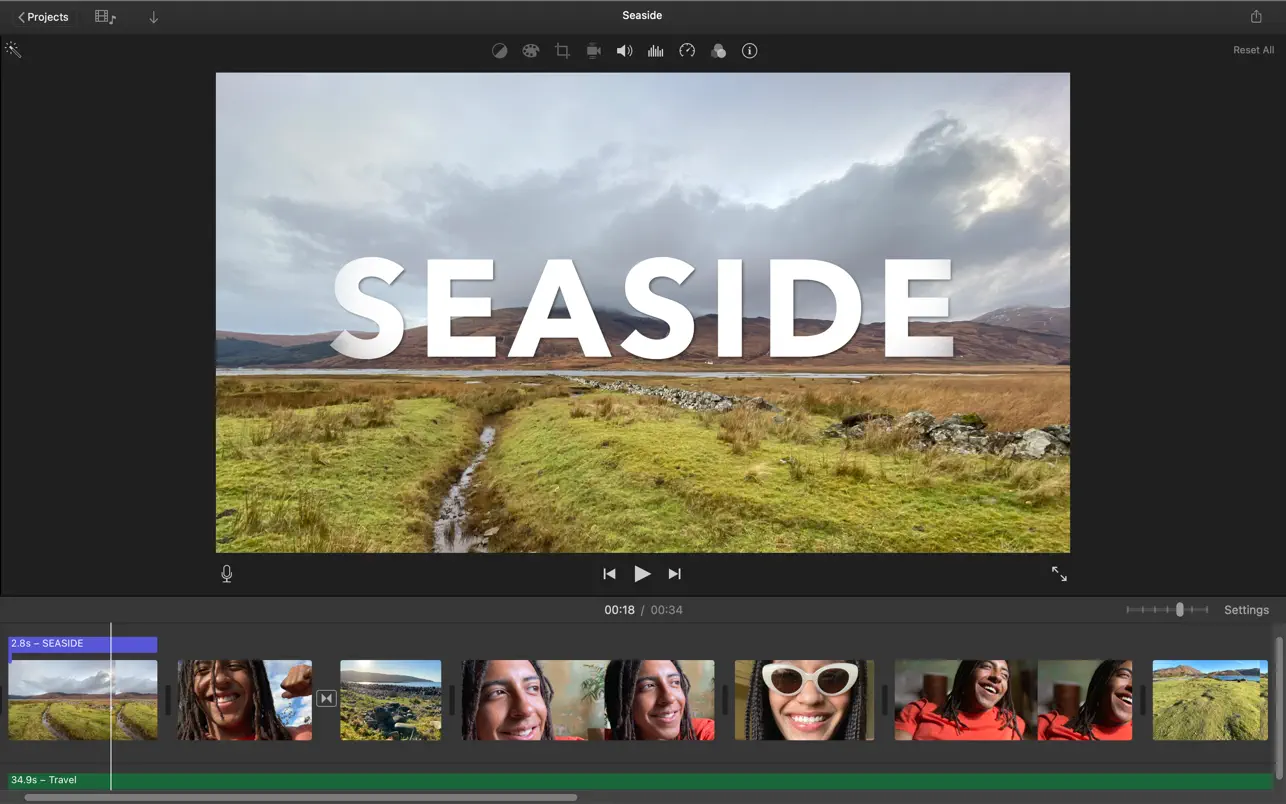
| Best free editor for Apple users | iMovie | Simple, polished, and already built for iPhone, iPad, and Mac workflows. |
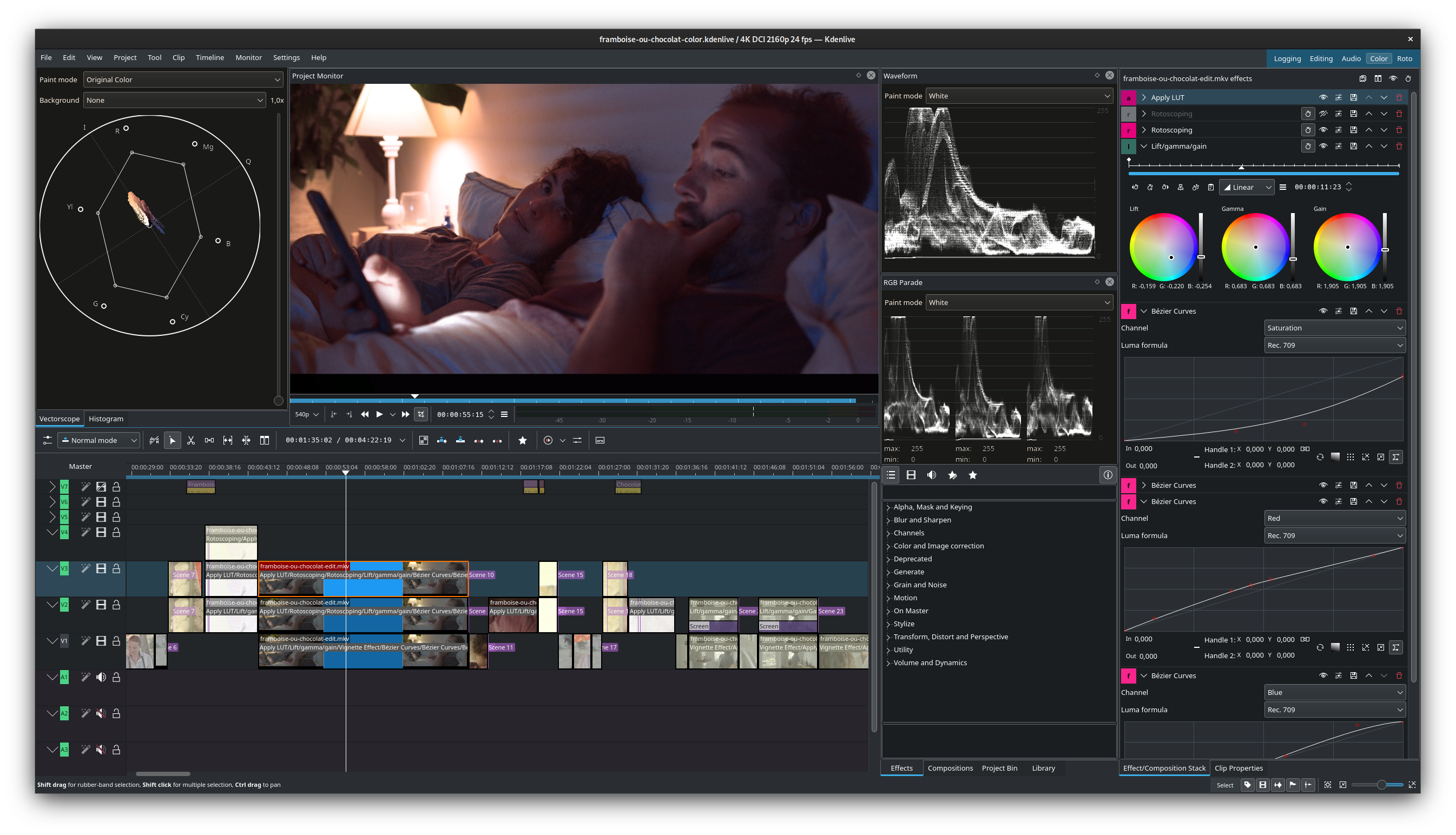
| Best free open-source editor | Kdenlive | A capable cross-platform editor with no subscription model and strong desktop editing features. |
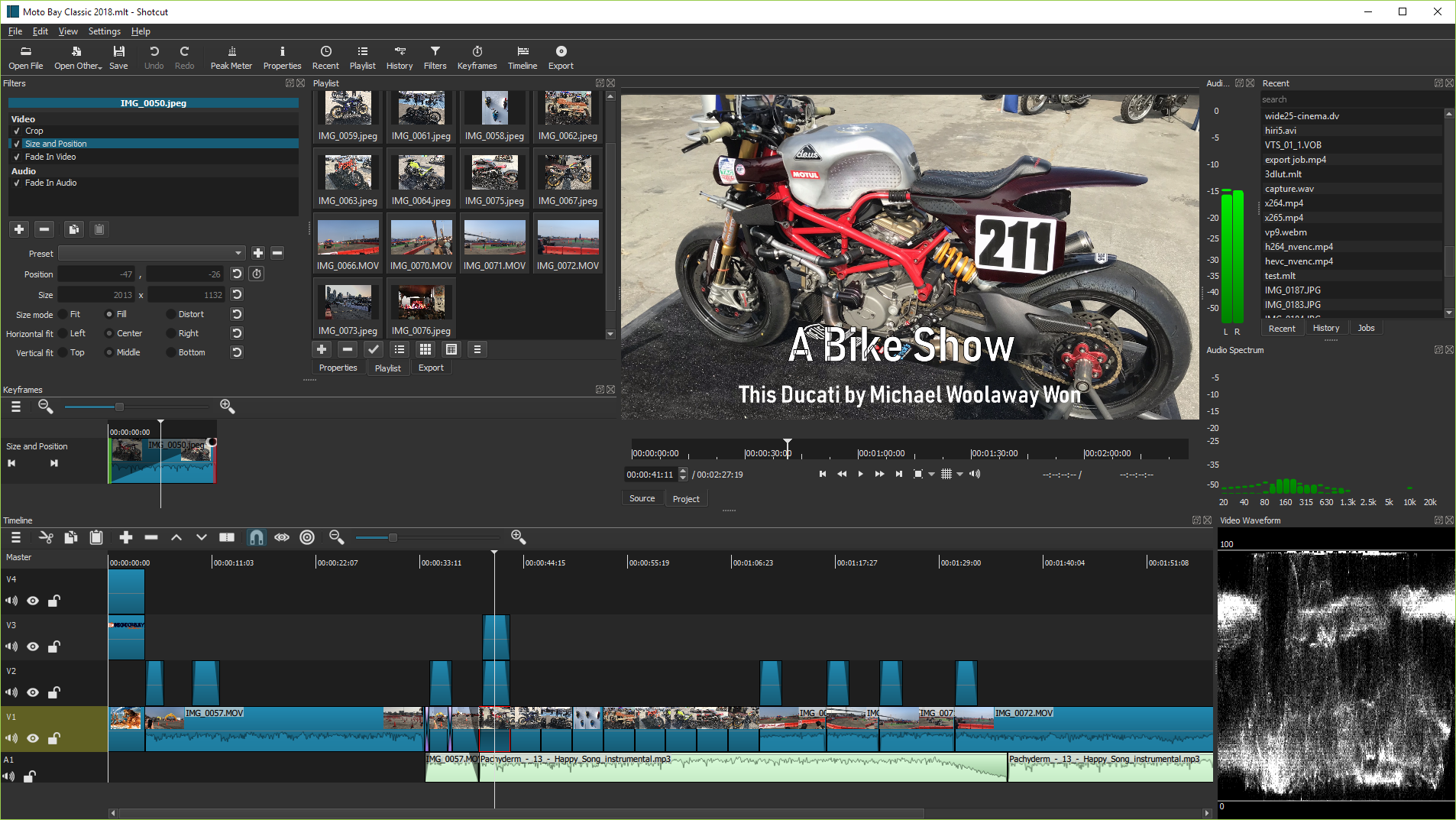
| Best lightweight open-source editor | Shotcut | Good for users who want a free desktop editor without a heavy creative suite. |
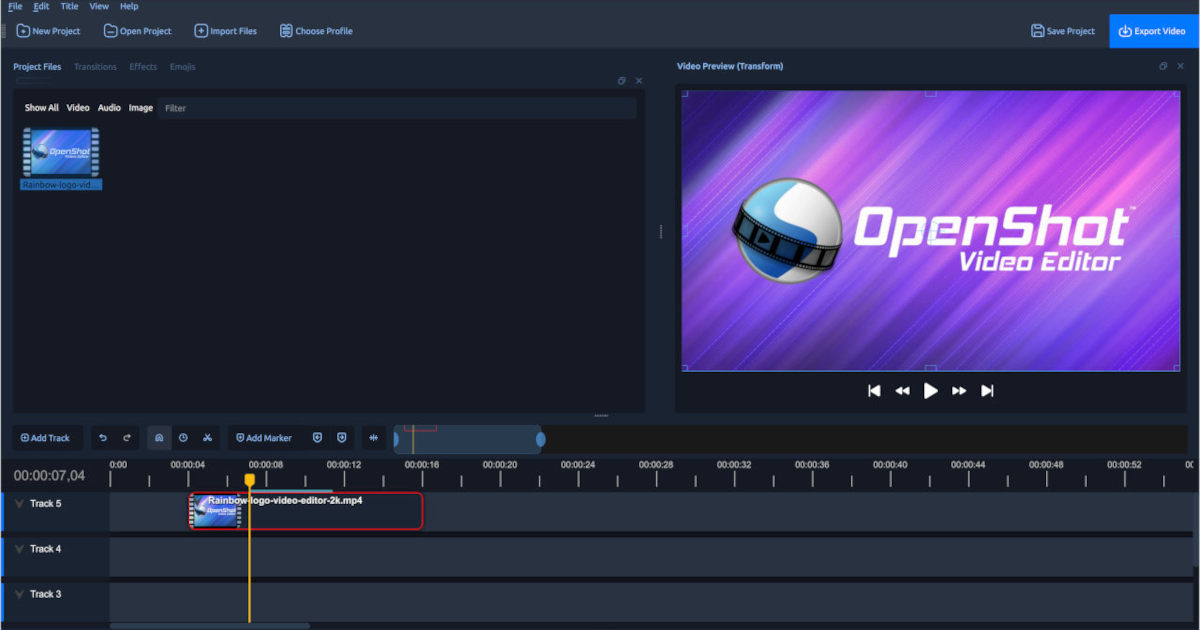
| Best simple open-source editor | OpenShot | Easier entry point for basic cuts, titles, and simple projects. |
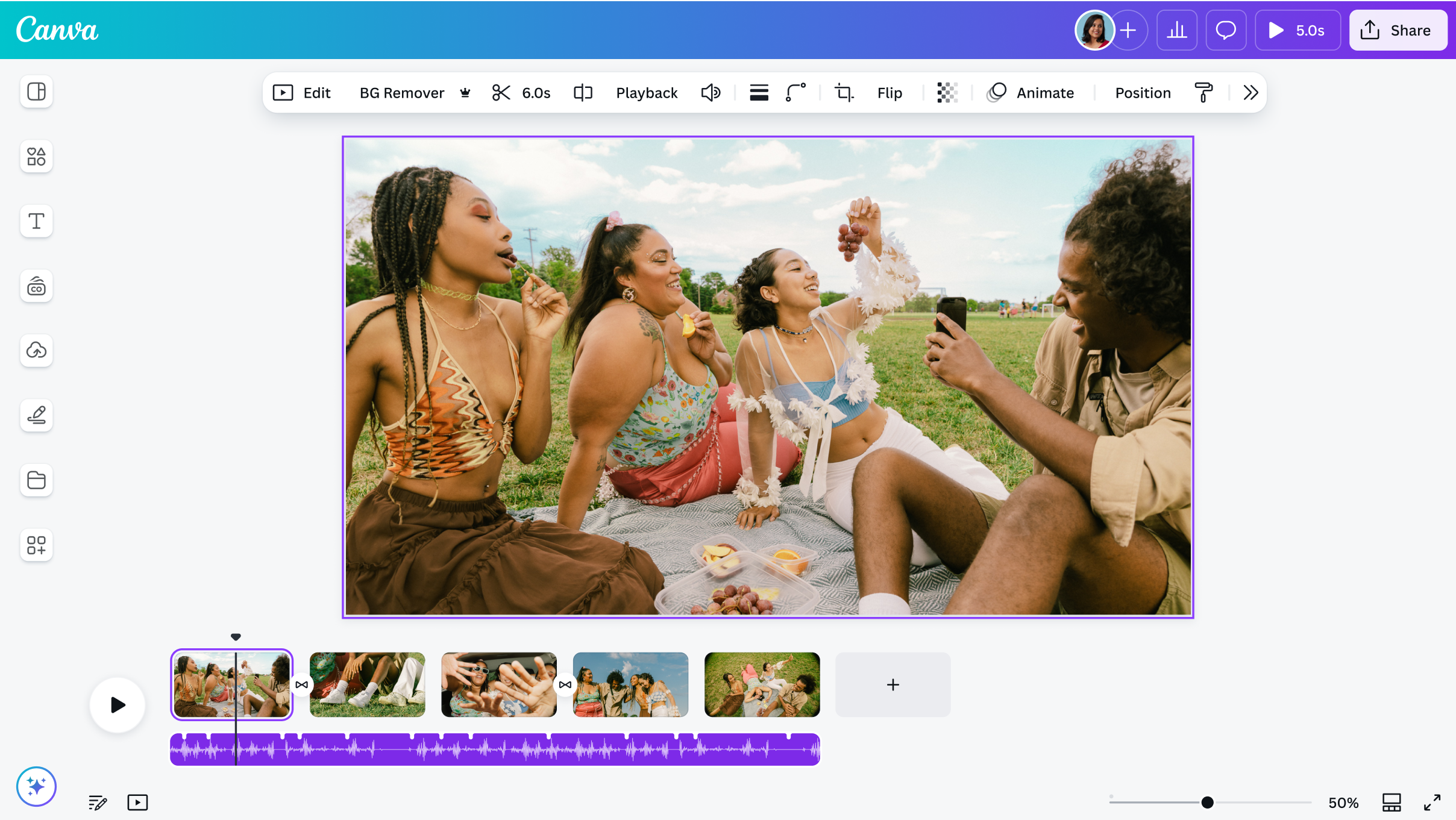
| Best free design-first video tool | Canva | Useful when the video is part of a social post, presentation, ad, or branded content workflow. |
If you are comparing paid professional editors such as Premiere Pro, Final Cut Pro, DaVinci Resolve Studio, CapCut, Filmora, and Kapwing, use the separate [7 best video editing software comparison](/compare/7-best-video-editing-software). The recommendations below focus on what you can use for free.
## Best Free Video Editing Software Compared
| Tool | Best for | Platforms | Free-plan reality | Main tradeoff |
|---|---|---|---|---|
| [Subclip](/tools/ai-video-editor) | Captions, transcripts, SRT, dubbing, repurposing support | Web | Free tools and trial-style workflows depending on feature | Not a full replacement for a complex timeline editor |
| [DaVinci Resolve](https://www.blackmagicdesign.com/products/davinciresolve) | Serious editing, color, audio, YouTube, client work | Windows, macOS, Linux | Free version available; Studio adds advanced AI and pro features | More complex than beginner tools |
| [CapCut](https://www.capcut.com/) | Short-form social clips | Web, desktop, mobile | Freemium; many useful free tools, with some Pro features | Free/pro boundaries can change by feature |
| [Clipchamp](https://www.microsoft.com/en-us/microsoft-365/clipchamp) | Windows and browser beginners | Web, Windows | Free plan available; paid Microsoft 365 features add more assets and tools | Less advanced timeline control |
| [iMovie](https://apps.apple.com/us/app/imovie/id408981434?mt=12) | Apple beginners | Mac, iPhone, iPad | Free Apple app | Apple-only and less advanced |
| [Kdenlive](https://kdenlive.org/) | Open-source desktop editing | Windows, macOS, Linux | Free and open source | Interface can feel less polished than commercial tools |
| [Shotcut](https://www.shotcut.org/) | Lightweight open-source editing | Windows, macOS, Linux | Free and open source | Takes some setup and learning |
| [OpenShot](https://www.openshot.org/) | Simple open-source editing | Windows, macOS, Linux, ChromeOS | Free and open source | Better for simple edits than heavy projects |
| [Canva Video Editor](https://www.canva.com/video-editor/) | Social design and branded content | Web, mobile | Freemium; strong free design workflow | Not a deep timeline editor |
## How to Choose the Best Free Video Editor
Before installing anything, decide what kind of editing you actually do.
If you are editing long YouTube videos, interviews, courses, podcasts, or client work, choose a real timeline editor. DaVinci Resolve, Kdenlive, Shotcut, and OpenShot belong in that group.
If you are editing short-form social content, choose speed. CapCut, Canva, Clipchamp, and Subclip-supported caption workflows can be faster because they are built around templates, captions, vertical formats, and quick exports.
If you are editing on a phone, start with CapCut or iMovie. If you are editing on a Windows laptop and want the easiest possible start, try Clipchamp. If you are on Mac and want simple family, school, or YouTube edits, try iMovie before installing something heavier.
The best free editor is not the one with the longest feature list. It is the one that matches your actual project:
- talking-head YouTube video
- gaming clip
- podcast highlight
- TikTok or Reel
- course lesson
- product demo
- slideshow or presentation video
- client video with color and audio cleanup
Once you know the project type, the right tool becomes easier to pick.
## 1. Subclip: Best Free Helper for Captions, Transcripts, and Creator Workflow
Subclip is not a replacement for DaVinci Resolve, Kdenlive, or CapCut if you need a full timeline editor.
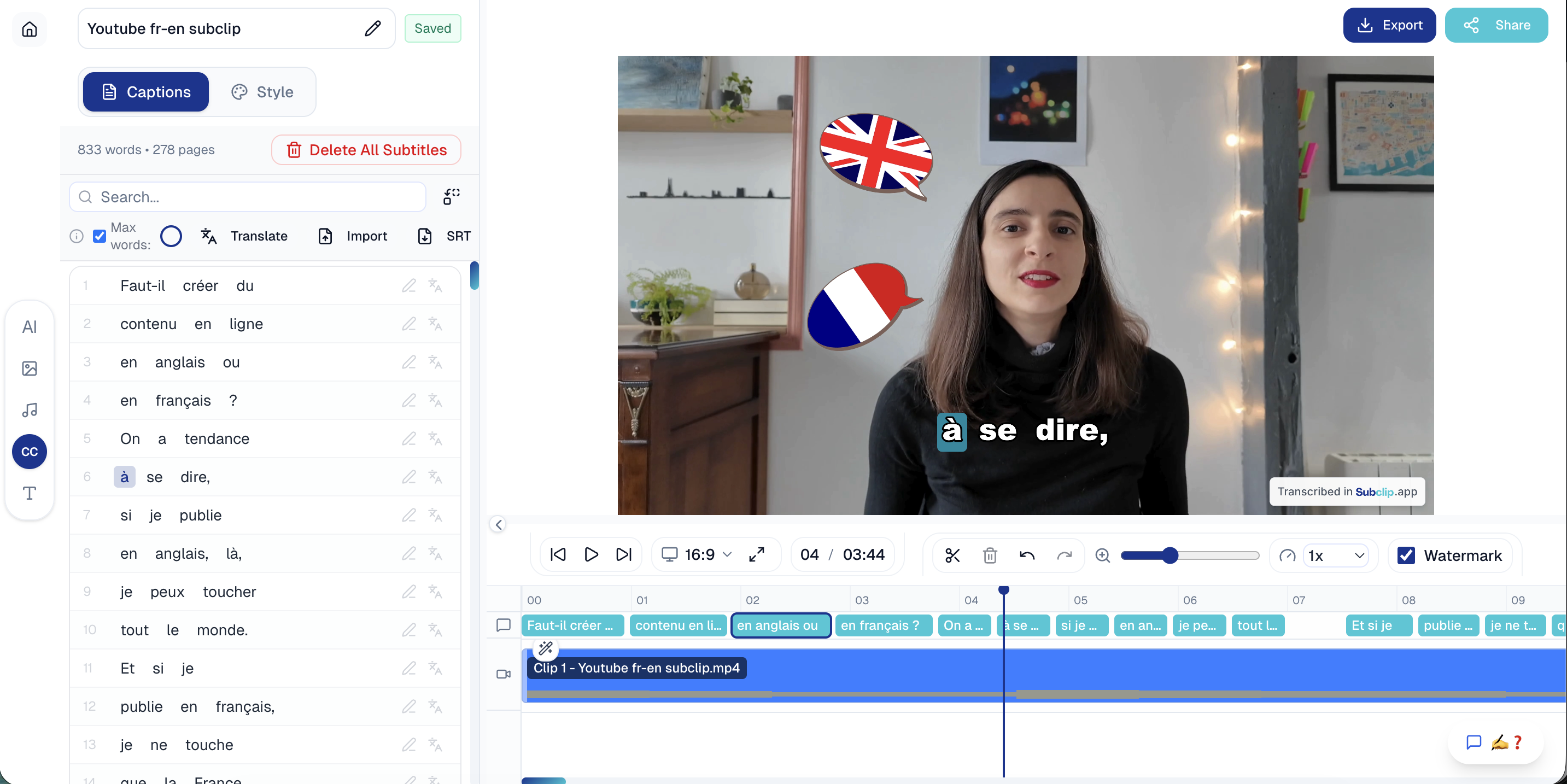
It is better understood as a workflow helper for the parts of video editing that often slow creators down: captions, subtitles, transcripts, SRT generation, translation, dubbing, and repurposing. If your main editor is already chosen but the captioning and publishing steps are still slow, Subclip can sit next to that editor.
Use [Subclip's AI video editor](/tools/ai-video-editor) or related tools when you need to:
- generate subtitles
- create an SRT file
- transcribe a video
- make captioned social clips
- translate subtitles
- dub content for another language
- speed up repetitive publishing tasks
This is where a free editor plus a focused AI workflow can beat a heavier all-in-one setup. Edit the core video in your chosen editor, then use Subclip for the caption, transcript, or localization step.
Best for: creators who already have footage and need faster captions, subtitles, transcripts, or multilingual publishing.
## 2. DaVinci Resolve: Best Overall Free Video Editing Software
DaVinci Resolve is the strongest answer for anyone asking for the best free video editing software in 2026.
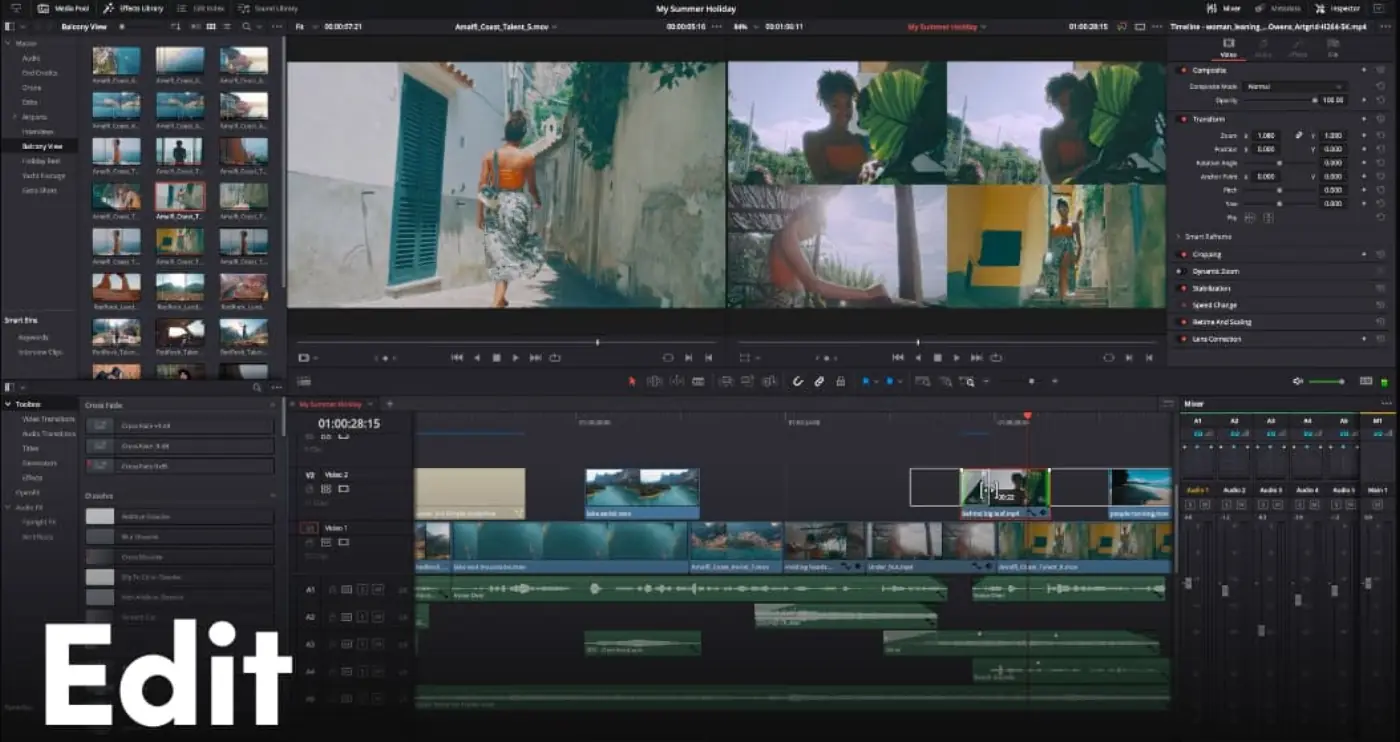
It is not just a beginner editor with a paid upgrade path. The free version gives you a serious timeline, color correction, audio tools, effects, multi-track editing, and export options that are enough for many creators, YouTubers, students, freelancers, and small teams.
Choose DaVinci Resolve if you want to build real editing skill. It is especially strong for:
- YouTube videos
- interviews and podcasts
- short films
- color correction
- multi-camera projects
- client edits
- longer videos that need a proper timeline
The tradeoff is learning curve. Resolve can feel heavy if you only want to trim a clip, add subtitles, and post to TikTok. If you are making serious videos regularly, that learning curve is worth it. If you need something casual, start simpler.
Best for: creators who want the most capable free editor and do not mind learning a professional workflow.
## 3. CapCut: Best Free Video Editor for TikTok, Reels, and Shorts
CapCut is the easiest recommendation for short-form creators who care about speed.
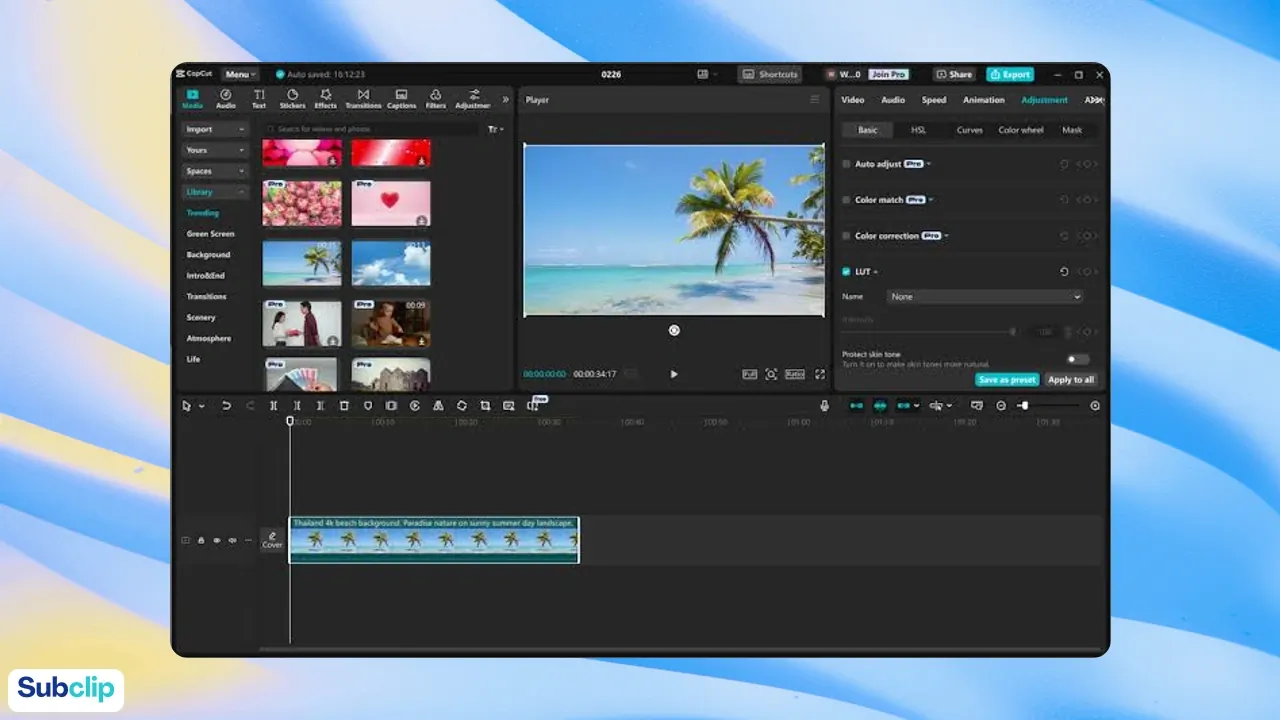
It is built around the way social video is actually made: vertical formats, fast cuts, captions, templates, effects, music, stickers, text, and platform-ready exports. If your main output is TikTok, Instagram Reels, YouTube Shorts, or quick creator clips, CapCut will usually feel faster than a traditional desktop editor.
Choose CapCut if you need:
- vertical video editing
- quick captions
- social effects
- mobile editing
- simple desktop editing
- trend-style templates
- fast exports for short clips
The main caution is that CapCut is freemium. Some features, templates, stock assets, effects, or exports may sit behind Pro depending on the current product plan and region. Treat it as a very useful free starting point, not a guaranteed no-limit free editor.
Best for: short-form creators, beginner social editors, mobile-first creators, and anyone editing for TikTok, Reels, or Shorts.
## 4. Clipchamp: Best Free Video Editor for Windows Beginners
Clipchamp is a practical free choice if you are on Windows or want a browser editor that does not feel intimidating.
It is not trying to be DaVinci Resolve. Its strength is that a beginner can open it, choose a template, add clips, trim, add text, use stock assets, and export without learning a professional editing interface.
Clipchamp works well for:
- simple social videos
- school projects
- work announcements
- marketing clips
- screen-recorded explainers
- quick edits on a Windows machine
The tradeoff is depth. If you want detailed color work, advanced audio mixing, deep timeline control, or complex effects, Clipchamp will feel limited. But if your real need is "make this clip presentable today," it is a good free place to start.
Best for: Windows users, students, teams, and beginners who want simple browser-based editing.
## 5. iMovie: Best Free Video Editor for Apple Users
iMovie is still one of the best free video editors for people already inside the Apple ecosystem.
It is simple, clean, and good enough for many beginner projects. You can cut clips, add titles, use transitions, create trailers, add music, apply basic effects, and export polished videos without dealing with a complicated interface.
iMovie is a strong fit for:
- iPhone videos
- family and travel edits
- school projects
- simple YouTube videos
- quick Apple-device workflows
- beginners who may later move to Final Cut Pro
The limitation is that iMovie is Apple-only and intentionally simple. That simplicity is the point. Use it when you want a polished beginner workflow, not when you need detailed professional control.
Best for: Mac, iPhone, and iPad users who want a free editor that feels easy from the first project.
## 6. Kdenlive: Best Free Open-Source Video Editor
Kdenlive is the best pick if you want a free, open-source editor with real desktop editing power.
It gives you a non-linear editing workflow, multi-track timelines, effects, transitions, audio tools, proxy editing, and enough flexibility for serious creator projects. Because it is open source, it is also appealing if you want to avoid subscriptions and commercial lock-in.
Use Kdenlive if you care about:
- open-source software
- desktop editing
- Linux support
- multi-track projects
- flexible export settings
- avoiding freemium limits
The tradeoff is polish. Kdenlive can feel more technical than iMovie, Clipchamp, or Canva. It is best for users who are comfortable learning a desktop editor and want capability without a subscription.
Best for: Linux users, open-source fans, budget-conscious creators, and people who want a capable free editor without a commercial upgrade path.
## 7. Shotcut: Best Lightweight Open-Source Video Editor
Shotcut is another strong free, open-source editor, especially if you want something lighter than a full professional suite.
It supports a wide range of formats and gives you a real timeline, filters, transitions, audio tools, and enough control for YouTube, tutorials, and general editing projects.
Shotcut is a good fit for:
- creators who want open-source software
- older or modest computers
- basic to intermediate YouTube edits
- users who want more than OpenShot but less complexity than Resolve
- people who need broad format support
The interface may take a little adjustment, but the tool is capable once you understand the workflow.
Best for: users who want a free desktop editor that is flexible, open-source, and lighter than a professional suite.
## 8. OpenShot: Best Simple Open-Source Editor
OpenShot is the easiest open-source editor to recommend for basic projects.
It is not the most advanced tool in this list, and that is fine. If you need to cut clips together, add titles, add music, make simple transitions, and export a straightforward video, OpenShot can do the job without turning the project into a software course.
Use OpenShot for:
- simple YouTube videos
- basic class projects
- family edits
- short presentations
- quick title and music edits
- beginners who prefer open-source tools
For heavier projects, you may eventually outgrow it. At that point, Kdenlive, Shotcut, or DaVinci Resolve will give you more control.
Best for: beginners who want a free open-source editor for simple cuts and titles.
## 9. Canva: Best Free Design-First Video Editor
Canva is not a traditional timeline editor, but it belongs on this list because many people making videos are really making social assets.
If your video is a LinkedIn post, Instagram ad, carousel-style animation, product announcement, short presentation, or branded social clip, Canva can be faster than a conventional editor. You get templates, brand assets, text layouts, music, animations, and design tools in one place.
Canva works well for:
- social media posts
- simple ads
- branded clips
- video presentations
- educational visuals
- thumbnails and video assets in the same workflow
The tradeoff is timeline depth. Canva is great when design and speed matter more than detailed frame-level control. If you need heavy editing, use Canva for graphics and a timeline editor for the video itself.
Best for: marketers, founders, educators, and social teams that think in templates and brand assets.
## Free vs Paid: What "Free" Usually Means in 2026
Not all free video editors are free in the same way.
Some tools are genuinely free and open source, such as Kdenlive, Shotcut, and OpenShot. These are usually best when you want to avoid subscriptions and do not need cloud templates or stock libraries.
Some tools have a powerful free version with a paid professional upgrade. DaVinci Resolve is the clearest example. Many creators can do serious work in the free version, while Studio adds advanced effects, AI features, noise reduction, and professional workflow extras.
Some tools are freemium. CapCut, Canva, Clipchamp, and many browser editors can be very useful for free, but selected assets, effects, templates, exports, storage, or AI features may require a paid plan.
Before choosing a free editor, check five things:
1. Does the free export include a watermark?
2. Can you export at the resolution you need?
3. Are subtitles, captions, and templates free or paid?
4. Does it run well on your device?
5. Can you move projects or exports elsewhere later?
A free editor is only truly useful if the exported video is good enough to publish.
## Best Free Video Editor by Creator Type
### YouTube creators
Use DaVinci Resolve if you want a serious long-term editor. Use CapCut if your channel is mostly Shorts. Use Subclip when subtitles, transcripts, and SRT files are part of your publishing workflow.
### TikTok, Reels, and Shorts creators
Start with CapCut. It is fast, social-native, and designed around the kind of edits short-form creators make every day. Add Subclip if you need cleaner caption or transcript workflows across platforms.
### Beginners
Start with iMovie on Apple devices, Clipchamp on Windows, or Canva if your video is design-heavy. Move to DaVinci Resolve only when you want deeper editing control.
### Open-source users
Start with Kdenlive if you want the most capable open-source choice. Use Shotcut if you want something lighter. Use OpenShot if you want the simplest open-source entry point.
### Marketers and small teams
Use Canva or Clipchamp for fast branded videos and announcements. Use DaVinci Resolve when production quality matters. Use Subclip when captions, subtitles, dubbing, or content repurposing become repetitive.
### Students
Use iMovie if you are on Apple devices, Clipchamp if you are on Windows, and OpenShot if you want a simple free desktop editor. DaVinci Resolve is a good choice if you are learning editing seriously.
## The Best Free Video Editing Setup for Most Creators
Most creators do not need one tool for everything.
A practical free setup looks like this:
1. Use DaVinci Resolve, CapCut, iMovie, Clipchamp, Kdenlive, Shotcut, or OpenShot for the main edit.
2. Use Canva when you need thumbnails, social graphics, or branded visual assets.
3. Use Subclip when you need subtitles, transcripts, SRT files, dubbing, or repurposing support.
4. Keep reusable intros, lower thirds, captions, and export presets so every video starts faster.
This workflow avoids the biggest free-software trap: switching tools constantly instead of building a repeatable process.
Pick one main editor, learn it well, and add helper tools only where they remove real friction.
## FAQ
### What is the best free video editing software in 2026?
DaVinci Resolve is the best free video editing software in 2026 for most serious creators because the free version is powerful enough for professional-style timeline editing, color work, audio, and exports. Beginners may prefer Clipchamp, iMovie, CapCut, or Canva depending on their device and video type.
### What is the best free video editor with no watermark?
DaVinci Resolve, iMovie, Kdenlive, Shotcut, and OpenShot are strong no-watermark options for most standard exports. Freemium tools can change watermark and export rules by plan, feature, or region, so check the current export screen before committing to a project.
### Is CapCut still free in 2026?
CapCut still has free editing features, but it is a freemium product. Some effects, templates, assets, cloud features, or advanced tools may require CapCut Pro. It remains one of the best free starting points for short-form social video.
### Is DaVinci Resolve really free?
Yes. DaVinci Resolve has a free version from Blackmagic Design. DaVinci Resolve Studio is the paid upgrade with additional pro features, but many creators can edit, color, mix audio, and export high-quality videos in the free version.
### What is the easiest free video editing software for beginners?
iMovie is easiest for Apple users, Clipchamp is easiest for many Windows users, and Canva is easiest when the project is more like a designed social asset than a traditional timeline edit. CapCut is easiest for short-form social creators.
### What free editor should I use for YouTube?
Use DaVinci Resolve for long-form YouTube videos, CapCut for YouTube Shorts, and Subclip when you need captions, transcripts, or SRT files for YouTube publishing.
### What free editor should I use for TikTok and Reels?
Use CapCut first. It is built for vertical video, quick cuts, captions, templates, music, and social formats. If you need cleaner subtitles, transcripts, or multilingual versions, add Subclip to the workflow.
### Should I use free video editing software or pay for an editor?
Start free if you are learning, testing a channel, making social content, or editing simple projects. Pay when the free tool blocks something important: faster workflow, team collaboration, advanced effects, higher-end color/audio work, commercial asset libraries, or client production needs.
## Final Recommendation
If you want the most powerful free video editor in 2026, choose **DaVinci Resolve**.
If you want the fastest free editor for short-form social video, choose **CapCut**.
If you want the easiest beginner option, choose **iMovie** on Apple devices or **Clipchamp** on Windows.
If you want open-source software, choose **Kdenlive**.
If subtitles, transcripts, SRT files, dubbing, or repurposing are slowing you down, use [Subclip](/tools/ai-video-editor) alongside your main editor instead of trying to force one free editor to do everything.
## Related Articles
- [7 Best Free AI Dubbing Tools in 2026 (Tested + Compared)](https://www.subclip.app/blogs/dub-videos-free-ai-tools-compared) - Compare free AI dubbing tools for creators: Subclip, AI Dubbing, HeyGen, Veed, Synthesia, ElevenLabs, and Descript. See free limits, best use cases, and when to upgrade.
- [AI Captions for Reels and TikTok](https://www.subclip.app/blogs/ai-captions-for-reels-and-tiktok) - A practical workflow for creating readable, well-timed AI captions for Reels and TikTok without hurting mobile viewing.
- [Best AI Video Editing Tools in 2026: 10 Picks for Creators](https://www.subclip.app/blogs/best-ai-video-editing-tools-2026) - A practical comparison of AI video editors for captions, clipping, generative video, transcript editing, and creator workflows.
## Related Tools
- [AI Video Editor](https://www.subclip.app/tools/ai-video-editor) - Edit videos in-browser with AI-powered workflows.
- [AI Video Dubbing](https://www.subclip.app/tools/dubbing) - Translate videos into 21+ languages with natural voices.